
Choose the purpose and scale
Start with a fortress, temple, tomb, prison, mine, laboratory, refuge, vault or lair. Select one of five bounded sizes and review the resulting room count.
Give every room a place in the adventure.
Prepare connected room keys with zones, history, hazards, clues and a climax. Refine the rooms you need, save the dungeon you accept and send a selected encounter to Combat PRO.
Prepare an explorable place
Use the generated key as a starting point for your own adventure preparation.
Start with a fortress, temple, tomb, prison, mine, laboratory, refuge, vault or lair. Select one of five bounded sizes and review the resulting room count.
Follow the linked room IDs through a connected chain with additional shortcuts. Entrances, exits and vertical connections are text references rather than a drawn map.
Review room purposes, occupants, hazards, traps, puzzles, clues, treasure and secrets. Adapt the authored descriptions to the setting and rules you use.
Review a guardian, ritual, escape, discovery, choice or rival climax, then decide how it connects to the dungeon’s history and the people exploring it.
Prepare the route and the room key
Review zones, linked rooms and exploration material before running the adventure.
This artwork illustrates a fantasy dungeon, not a generated map or application screen.
From a purpose to a prepared key
Quick and Deep use the same complete dungeon structure, with additional controls visible in Deep.
Quick exposes size, purpose and seed. It retains existing Deep settings, including room count and levels, so review those when changing scale.
Deep adds builders, age, environment, occupants, occupation, factions, structure, danger, content densities, verticality, climax, party level and influences.
Read the connected room references and the authored history, faction and ecology notes. Check hazards, secrets, rest suggestions and the climax against your campaign.
Lock useful rooms or zones for Generate again, edit the key or reroll a selected area. Save manually through your account once you accept the combined result.
What the tool provides
Eight capabilities support room keys, selective refinement, account reference and encounter preparation.
Quick exposes size, purpose and seed. Deep adds builders, age, environment, occupants, factions, danger, densities, levels and party reference. Both produce the same dungeon structure.
Choose a short, small, medium, large or mega dungeon. Room counts are kept within the selected size, from five rooms up to sixty, with one to eight level labels.
Review room IDs, zone membership and linked-room references. The generator uses a connected chain with additional shortcuts and validates room reachability.
Read authored history, occupation and ecology notes alongside hazards, traps, puzzles, clues, treasure, secrets and a climax. Adapt the guidance to your table.
Lock rooms or zones for Generate again. Reroll a room directly, or reroll an unlocked zone while retaining its locked rooms. Review the complete result after each change.
Edit the dungeon title and room purpose, DM description and player description. Copy a DM key or brief player handout, or download the complete current JSON record.
Save through your DCC session, reopen saved dungeons, and rename, duplicate or delete library records. Repeated saves retain up to ten previous dungeon snapshots.
Send a room marked Encounter to a prepared Combat PRO slot, subject to separate ownership and capacity. Enemy references and preparation notes travel with that room.
Choose the character of the place
Descriptions come from finite authored pools. Controls guide labels, densities and preparation notes rather than simulate a living location.
Choose an origin and age, current occupants and occupation state. Add faction reference text, then adapt the generic history and relationships to your adventure.
Choose an environment and constructed, natural or mixed structure. Influences are copied reference text and can appear in player room descriptions; keep private details out.
Adjust danger and the densities of traps, puzzles, secrets and treasure. Party level supports notes, not calculated balance, and enemy references are not generated statblocks.
Choose one to eight level labels and a verticality preference. Vertical links and secret routes are textual notes, and the room graph follows a count-based pattern.
Keep a useful dungeon reference
Review the DM key, brief player handout and selected-room encounter separately.
This illustrated folio is fantasy artwork, not exported application output.
Refine the areas you need
Room and zone locks support Generate again, with distinct rules for each targeted reroll.
Generate again keeps matching locked rooms and rooms in locked zones. Changing count or zone controls can make old references incompatible and produce a validation error.
A zone lock disables that zone’s reroll, while an unlocked zone reroll retains its locked rooms. The direct room reroll replaces its target even if that room or zone is locked.
Single-room and zone rerolls rebuild overview, history, handout and other unlocked zone material. Locks do not guarantee semantic consistency across retained and replaced fields.
Edit the title and room purpose, DM description and player description. The separate brief handout does not automatically update. Save revalidates structure; the displayed validation can predate your edits.
Account reference and reviewed sharing
The existing DCC session connects manual saves to your VISINVOKE account.
Save validates the dungeon and updates the account library. The same seed-based ID retains up to ten prior dungeon snapshots, but the library offers no control to reopen those snapshots.
Open restores the dungeon and seed while retaining other controls and locks. Rename, duplicate or delete saved records. There is no autosave or offline fallback; avoid conflicting saves from several windows.
Copy the brief player handout after reviewing its name, description, entrances and warnings. Download JSON includes private DM material. Print is the DM view and includes secrets.
Send a selected room marked Encounter to a prepared slot, subject to separate ownership and capacity. Repeated dungeon-ID and room transfers are duplicates; nothing automatically activates or synchronises combat.
Choose access for your toolkit
Dungeon Generator is a paid standalone tool. Create a free account first, then review your selection and subscription.
Select Dungeon Generator individually. Creating a free account does not by itself include paid generator access.
Choose a five-generator pack for other eligible standalone tools alongside this one. It provides selection capacity, not automatic access to every VISINVOKE product.
Review larger selected-generator packs in your account. Check the generators, subscription and reselection terms before choosing your toolkit.
Combat PRO, Battlemaps and image systems have their own access models. Standalone generator subscriptions do not include image or animation credits.

Keep linked room references, discoveries and preparation notes together.
Review coherence, danger and player information yourself before using the dungeon.
Start Here and How Do I help cover generation, refinement, saving and selected encounters.
Save deliberately and reopen the current library record when you need it again.
Build your tabletop toolkit
Each card opens that product’s website. Review purpose and access separately; related products do not promise included access or automatic synchronisation.
Discover and open your supported Windows products through one connected VISINVOKE account.

Explore environment packs for tactical locations and the places your encounters unfold.
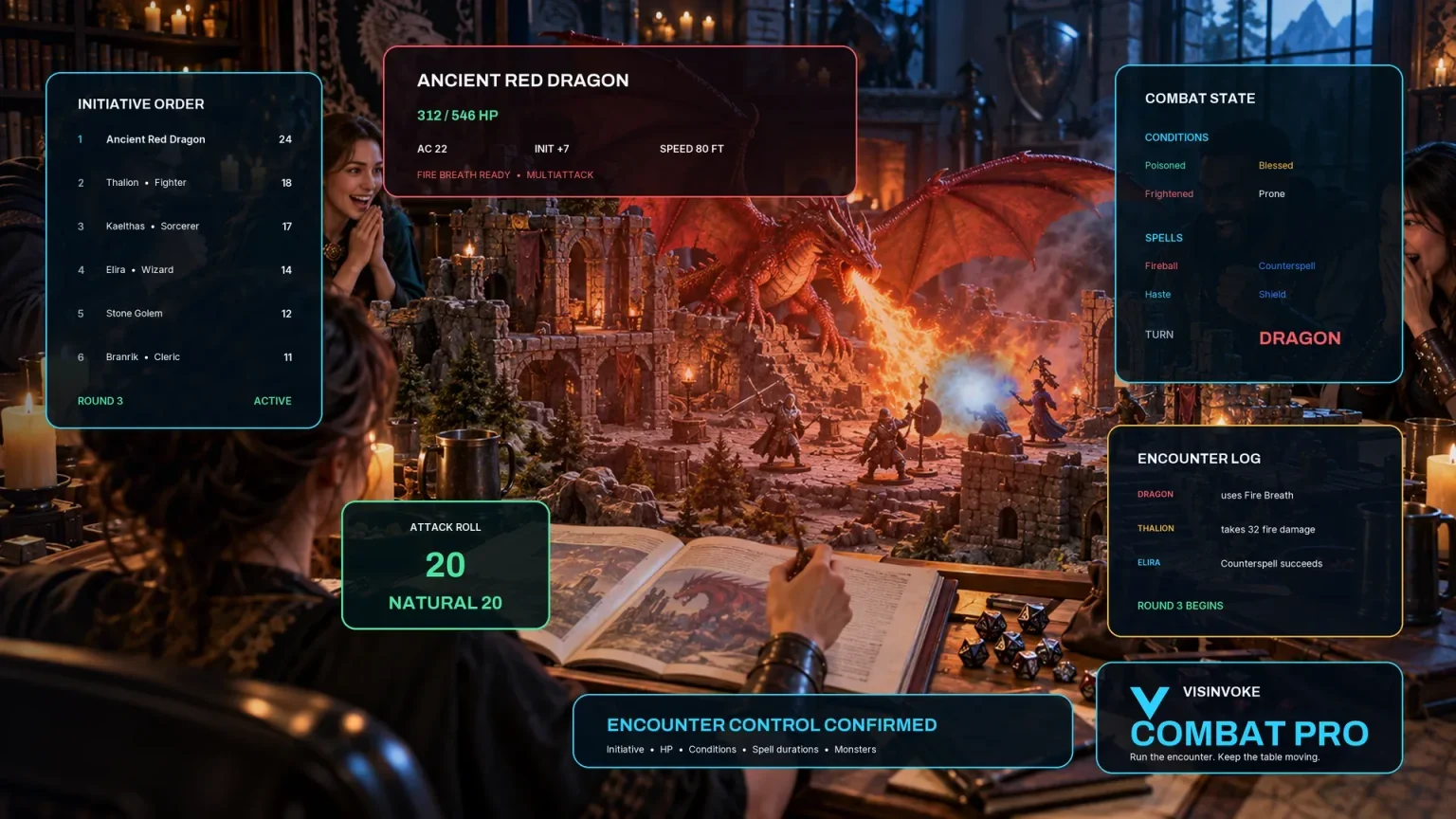
Review prepared opposition, tune creature statistics and run tabletop encounters with its own access.

Create focused character, monster, item and location images to complement your tabletop preparation.

Create guided commercial visuals for websites, brochures and wider creative projects.

Explore a separate futuristic RPG experience with its own world, characters and progression.
Product artwork illustrates fantasy dungeons and tabletop preparation, not application screens or actual generated image output.
Quick answers
Understand the authored material, audience boundaries and encounter handoff before opening the tool.
Quick exposes size, purpose and seed. Deep also shows builders, age, environment, occupants, occupation, structure, factions, danger, magic and content densities, verticality, climax, room count, levels, party level and influences. Quick retains previously selected Deep values. Counts are clamped to the chosen size: short 5–7, small 8–12, medium 13–21, large 22–32 and mega 30–60. Both modes use the same generation routine. A seed works with an internal generation counter and reroll target, so entering the seed alone does not replay an exact dungeon. Fresh dungeon clears the result, seed and locks while retaining other controls.
It provides text topology and linked room IDs, not a drawn map or battlemap. The graph is a connected chain with count-based shortcuts; changing a seed does not create a different graph at the same room count. Entrances, exits, vertical links and secret-route notes are textual preparation material. Finite authored descriptions support history, factions, hazards and ecology, but are not a simulation or guarantee of narrative consistency. Party level is a reference note rather than calculated encounter balance. Enemy names are references, without generated statblocks or hit points. There are no PNG/SVG schematic exports or direct Dungeon Module handoff.
Generate again preserves matching locked rooms and rooms in locked zones. A zone lock disables its zone reroll; rerolling another unlocked zone retains locked rooms within it. The direct Reroll room button replaces its target even when that room or its zone is locked. Single-room and zone rerolls still rebuild overview, history, handout and other unlocked zone material. Changing room count or zone controls while retaining locks can produce incompatible references and a validation error. Review the combined result; locks do not guarantee semantic consistency across every retained field.
Validation checks required schema, minimum rooms and zones, unique room IDs, room zone references, room purposes, connection targets and reachability. It also checks one specific secret-route phrase in player descriptions; it does not detect every secret or guarantee coherent fiction. Influences can appear in room player descriptions, so keep private details out of them. Copy player-safe handout uses only its name, brief description, known entrances and warnings, not every room description. Key edits, renames and duplicates do not automatically update that separate handout. Review it before sharing. Print is the DM view and includes secrets.
Save manually validates the current dungeon and writes the library through your DCC account session. Saving the same seed-based ID updates its current record and retains up to ten prior dungeon snapshots. The library displays the prior-version count but provides no control to reopen those snapshots. Open restores the saved dungeon and its seed while retaining other controls, locks and the internal counter. Rename, duplicate and delete affect library records; deleting does not clear the open workspace. There is no autosave, offline fallback, import, search, comparison or undo/redo control. Avoid conflicting whole-library saves from several windows.
Copy printable DM key creates a text room key, not every structured field. Download structured JSON exports the complete current dungeon, including private DM material; it is not a player handout or entire-library export, and there is no import control. Print includes the current DM material. Combat PRO transfer sends one selected room encounter with enemy references, battlefield preparation, hazards, objective, treasure and notes. It requires separate Combat PRO ownership and an available prepared slot. Repeating a transfer for the same dungeon ID and room is treated as a duplicate, even after that room changes. It does not import the whole dungeon or existing live initiative, hit points or turns, and does not activate or synchronise combat.
Continue in VISINVOKE
Create a free VISINVOKE account and choose the required generator access.
Get Desktop Command Centre from your account installer page. Sign in on Windows, then open Dungeon Generator.